 Sway
SwayThe app you choose.
The access you allow.
Selecting an app does not turn on automatic protection by itself. Follow the steps below.
Public Google Play release is under review · checked 2026-10-15. General installation may not be available before approval.
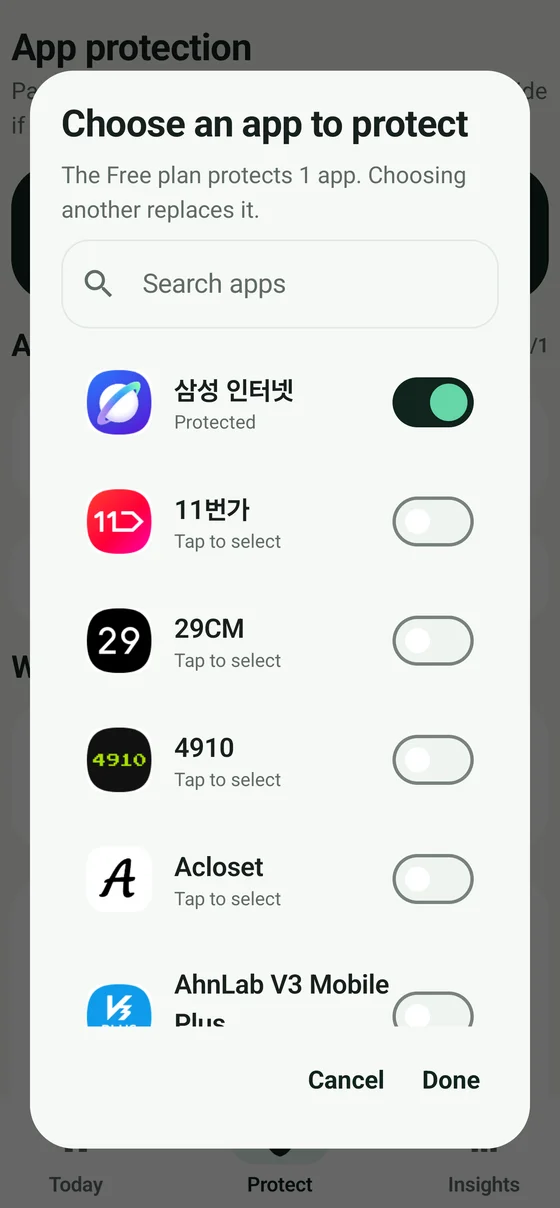
1. Choose one app.
Select one app in Sway’s protected-app picker. This is included in Free. Choosing an app and connecting Accessibility are separate steps.
2. Read the disclosure, then connect yourself.
Review Sway’s automatic-protection disclosure and consent flow, then go to Android Accessibility settings. Enable Sway yourself and return to the app. Menu names vary by Android and Samsung One UI version. Confirm that protection is active in Sway.
3. Open the selected app.
With protection active, open the app you chose. You can leave immediately, or choose to continue after the short countdown.
If the pause does not appear every time
Sway does not block every opening. Quick re-entry, an hourly intervention limit or a rest period can skip a pause. Check your selected app, Accessibility connection and whether protection is paused. On Plus, also check your schedule.
To turn access off
Disable Sway in Android Accessibility settings. Automatic protection stops. Local history can be deleted separately in Sway. You do not need to bypass security warnings or device protections.
To report a problem
Tell the developer your phone model, Android/One UI version, Sway version and the step that failed. Do not send passwords, payment details, purchase tokens, other apps’ screen content or private messages.